1. การตั้งค่า IMAP บน Microsoft Outlook (Windows/Mac)
Windows (Outlook 2019/2021/2021/2023/365)
- เปิด Outlook
- ไปที่ File → Add account
- เลือก Let me set up my account manually
- Connect
- เลือก IMAP (Account type)
- กรอกข้อมูลตามด้านล่าง
ข้อมูลการตั้งค่า IMAP สำหรับทั่วไป:
| ชื่อฟิลด์ | ค่าที่ต้องใส่ (ตัวอย่าง) | หมายเหตุ |
|---|---|---|
| User Name | อีเมลของคุณ ([email protected]) | หรือชื่อผู้ใช้ระบบ |
| Email Address | อีเมลของคุณ ([email protected]) | เช่น [email protected] |
| Password | รหัสผ่าน (หรือ App Password) | หากมี 2FA ให้ใช้ App Password |
| Account Type | IMAP | เลือก IMAP |
| Incoming mail server | imap.domain.com | เช่น mail.dotcloudmail.com |
| Incoming port | 993 | SSL/TLS |
| Outgoing mail server | smtp.domain.com | เช่น mail.dotcloudmail.com |
| Outgoing port | 465 | SSL/TLS |
| Require SSL/TLS | มักต้องเปิดใช้ | เลือก ON |
macOS (Outlook 2019/New Outlook)
- เปิด Outlook
- ไปที่ Outlook → Settings → Accounts
- เลือก Add Account → Other Account → Email
- เลือก Add Email Account → Continue
- เลือก Let me set up my account manually → Connect
- เลือก IMAP
- กรอกข้อมูลดังนี้:
| ชื่อฟิลด์ | ค่าที่ต้องใส่ |
|---|---|
| User Name | [email protected] |
| Email Address | [email protected] |
| Password | รหัสผ่าน (หรือ App Password) |
| Account Type | IMAP |
| Incoming mail server | mail.dotcloudmail.com |
| Incoming port | 993 (SSL) |
| Outgoing mail server | mail.dotcloudmail.com |
| Outgoing port | 465 (SSL) |
| SSL/TLS | ON |
2. การแก้ไข/อัปเดตบัญชีอีเมลใน Outlook (ถ้าต้องการแก้ไขค่า)
Windows
- เปิด Outlook
- File → Account Settings → Account Settings...
- เลือกบัญชีอีเมลที่ต้องการแก้ไข → Change
- แก้ไขข้อมูล (IMAP/SMTP settings) → Next
- Finish
macOS
- Outlook → Settings → Accounts
- เลือกบัญชีอีเมลที่ต้องการแก้ไข → Edit (หรือ Remove แล้ว Add account ใหม่)
3. ตัวอย่างการตั้งค่าบน Android
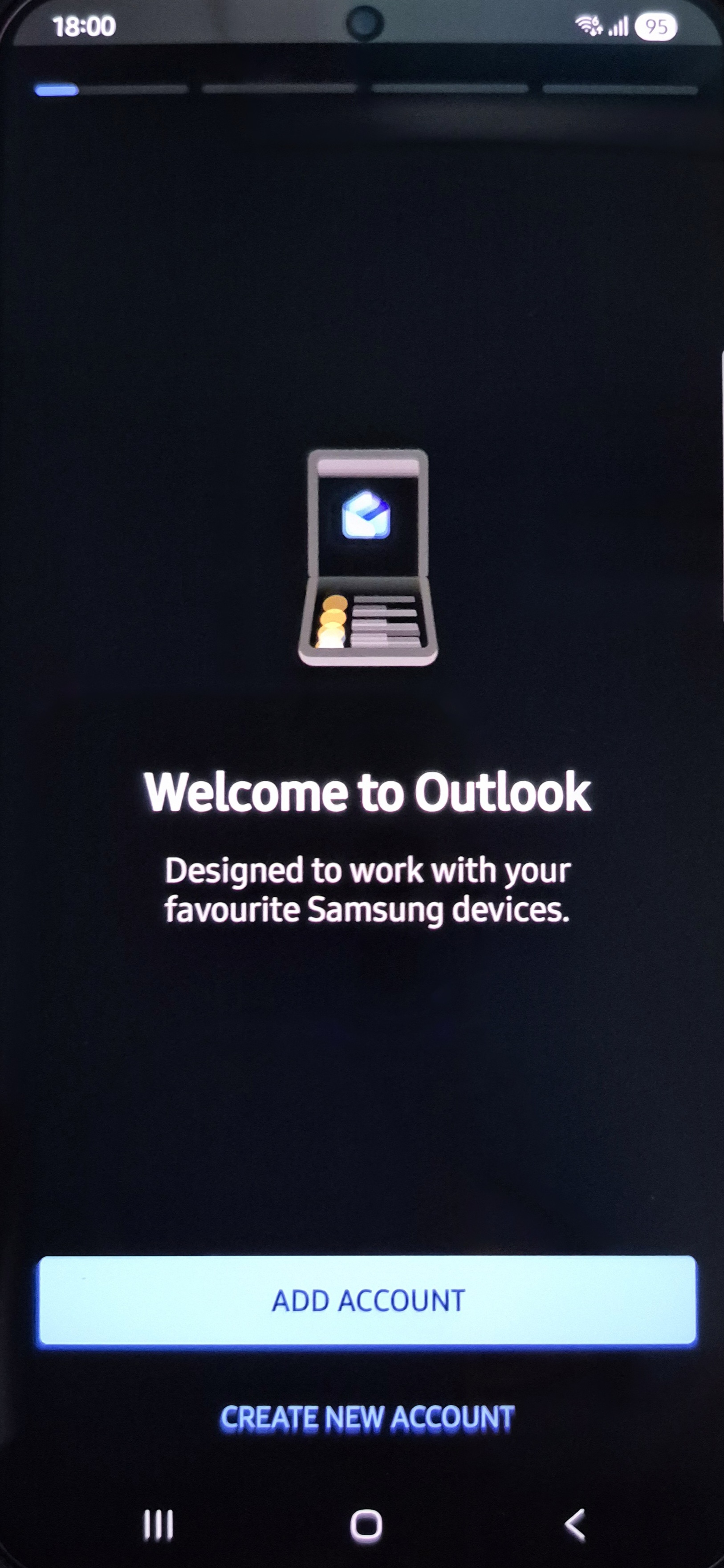
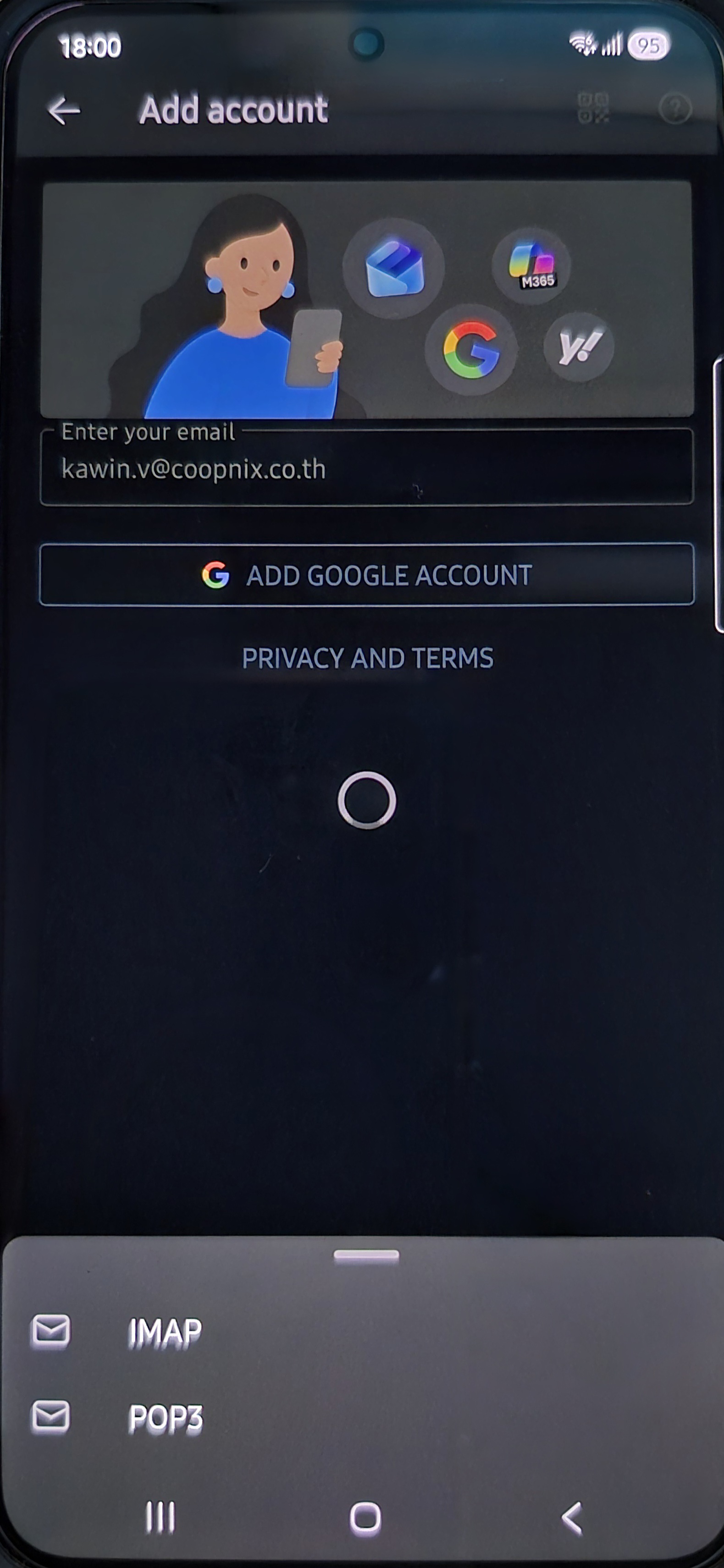
Add Account
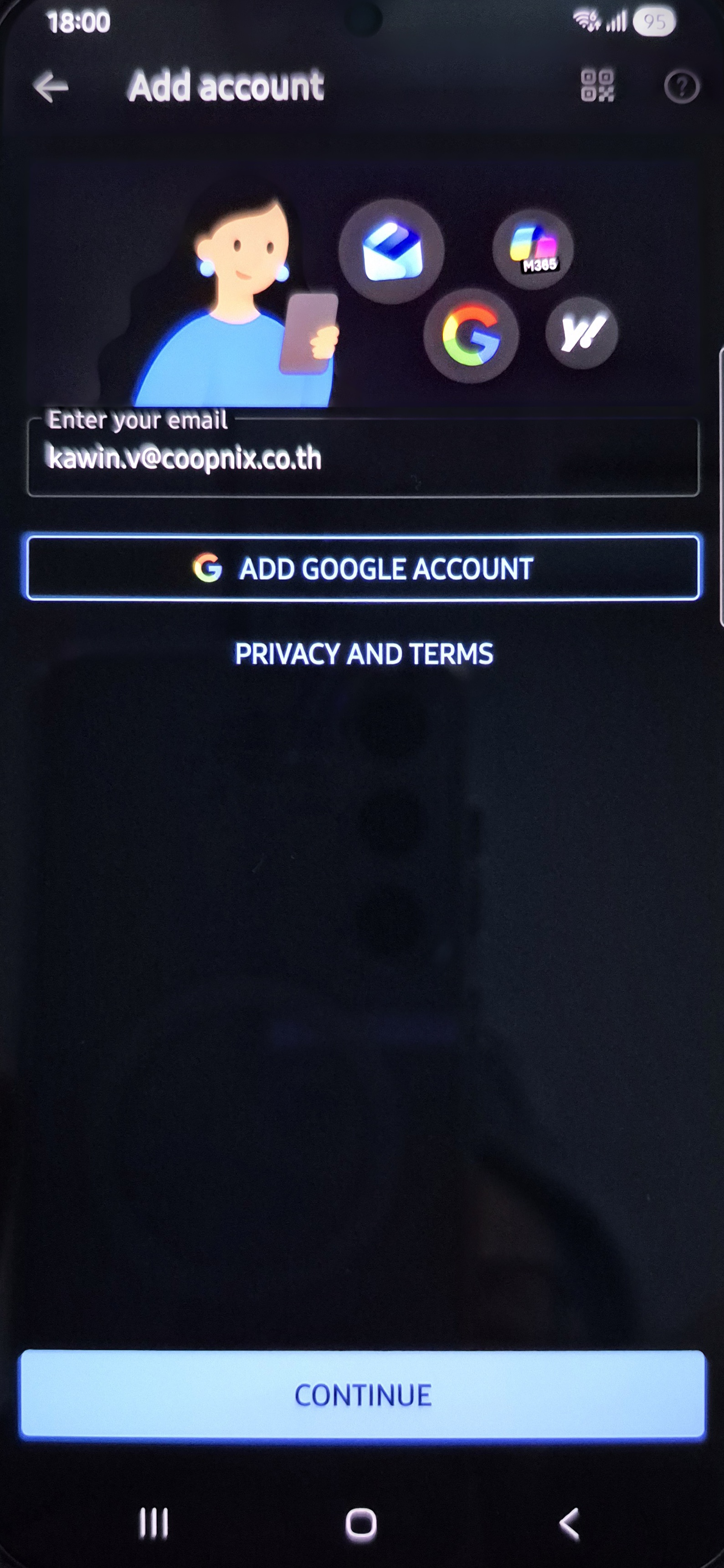
กรอก Email
เลือก IMAP
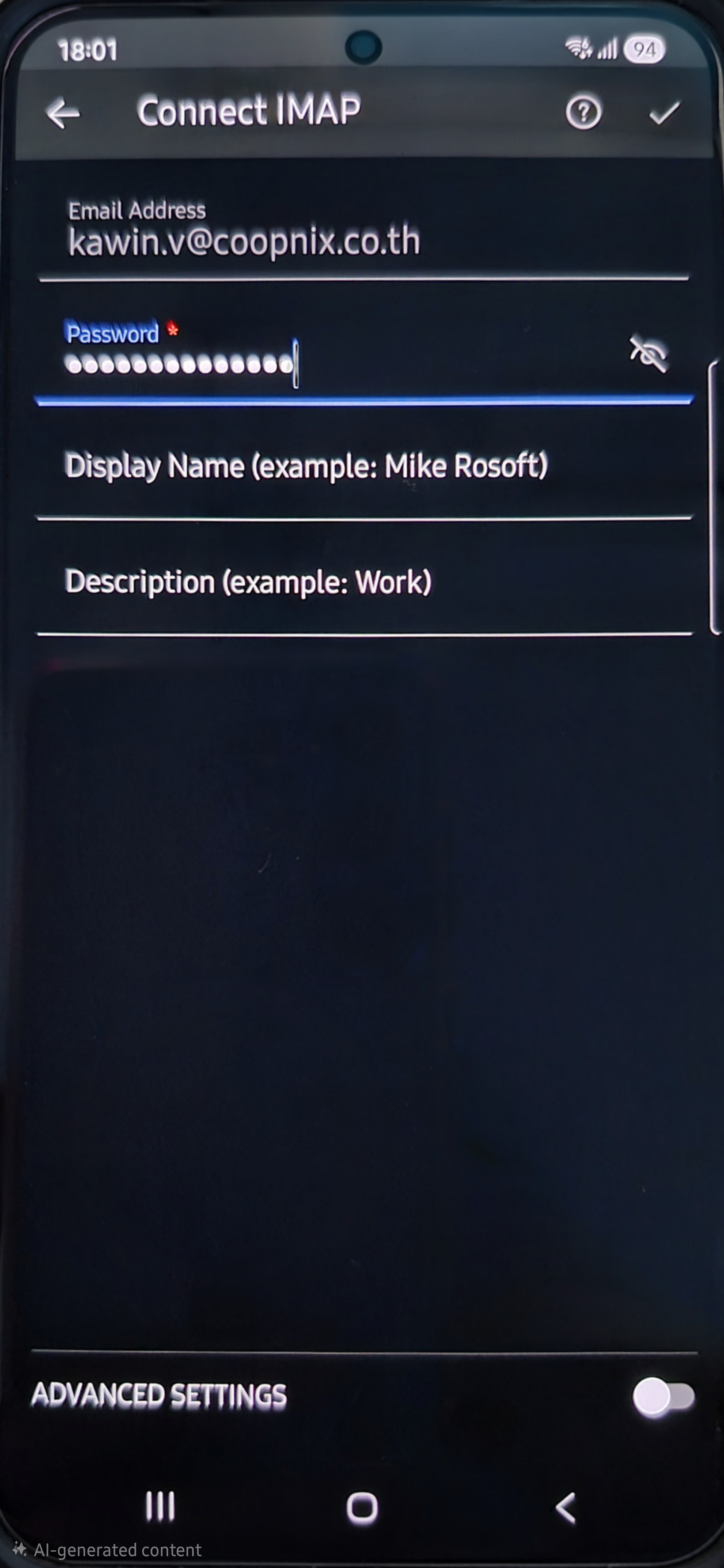
กรอก Password ของ Email
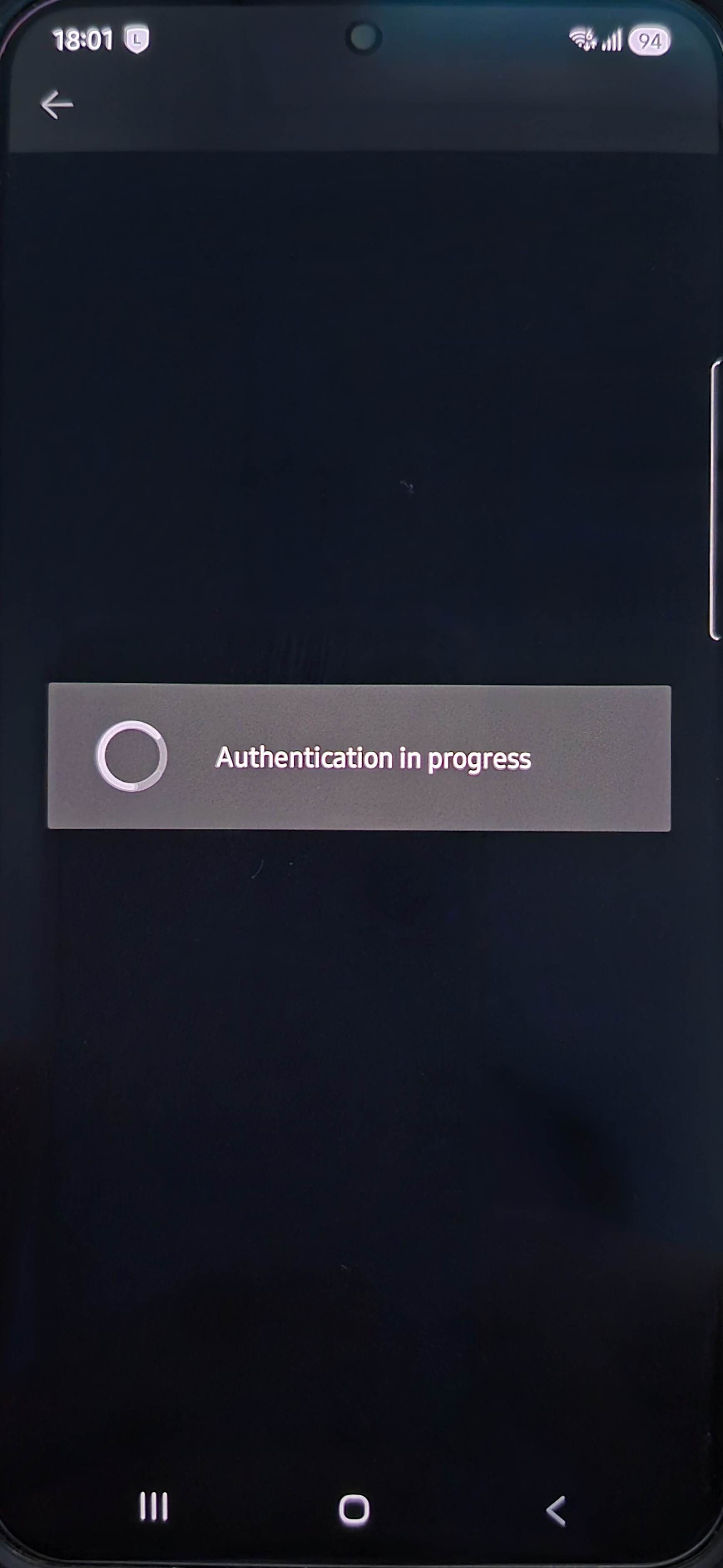
กดบันทึกเพื่อเชื่อมต่อ
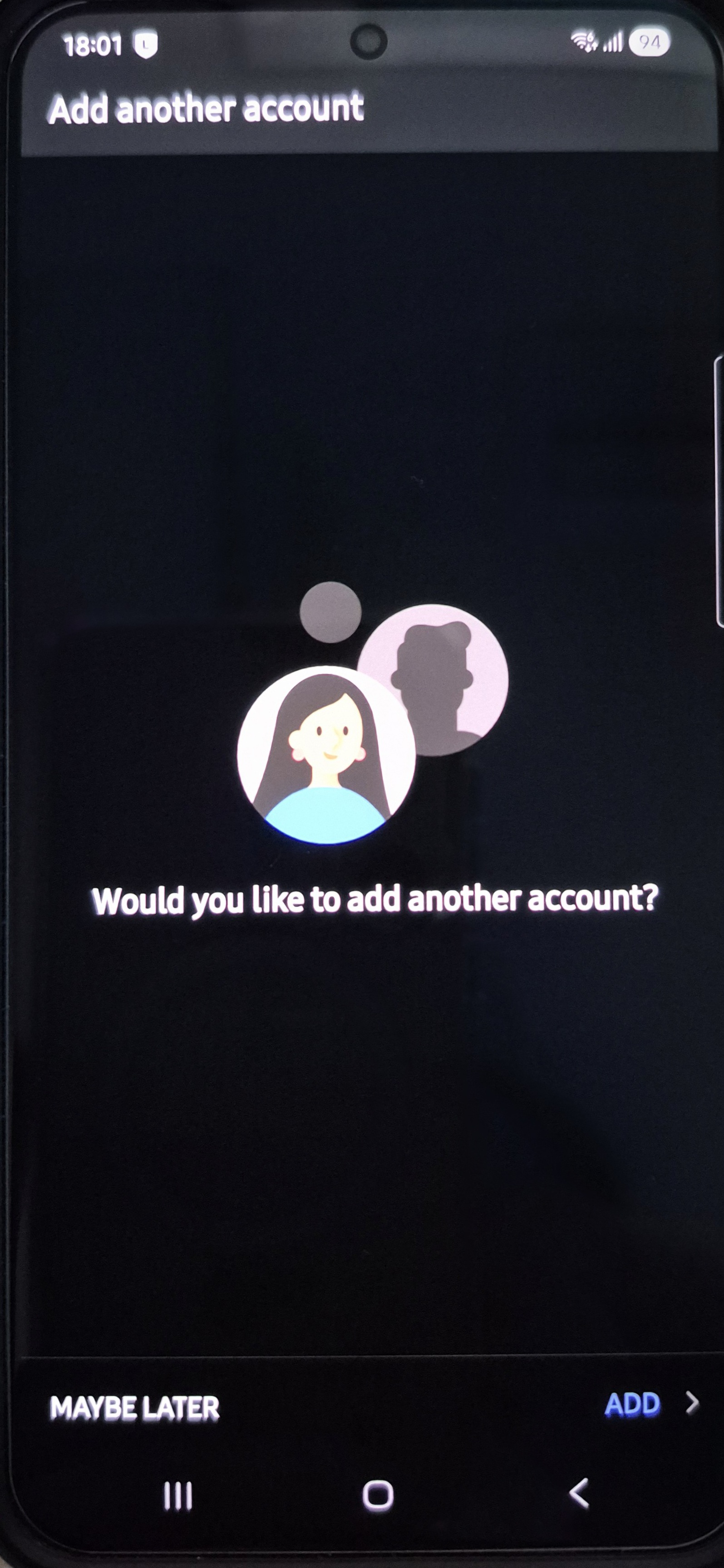
กด Me be later ถ้าไม่ต้องการเพิ่ม Email อื่นอีก
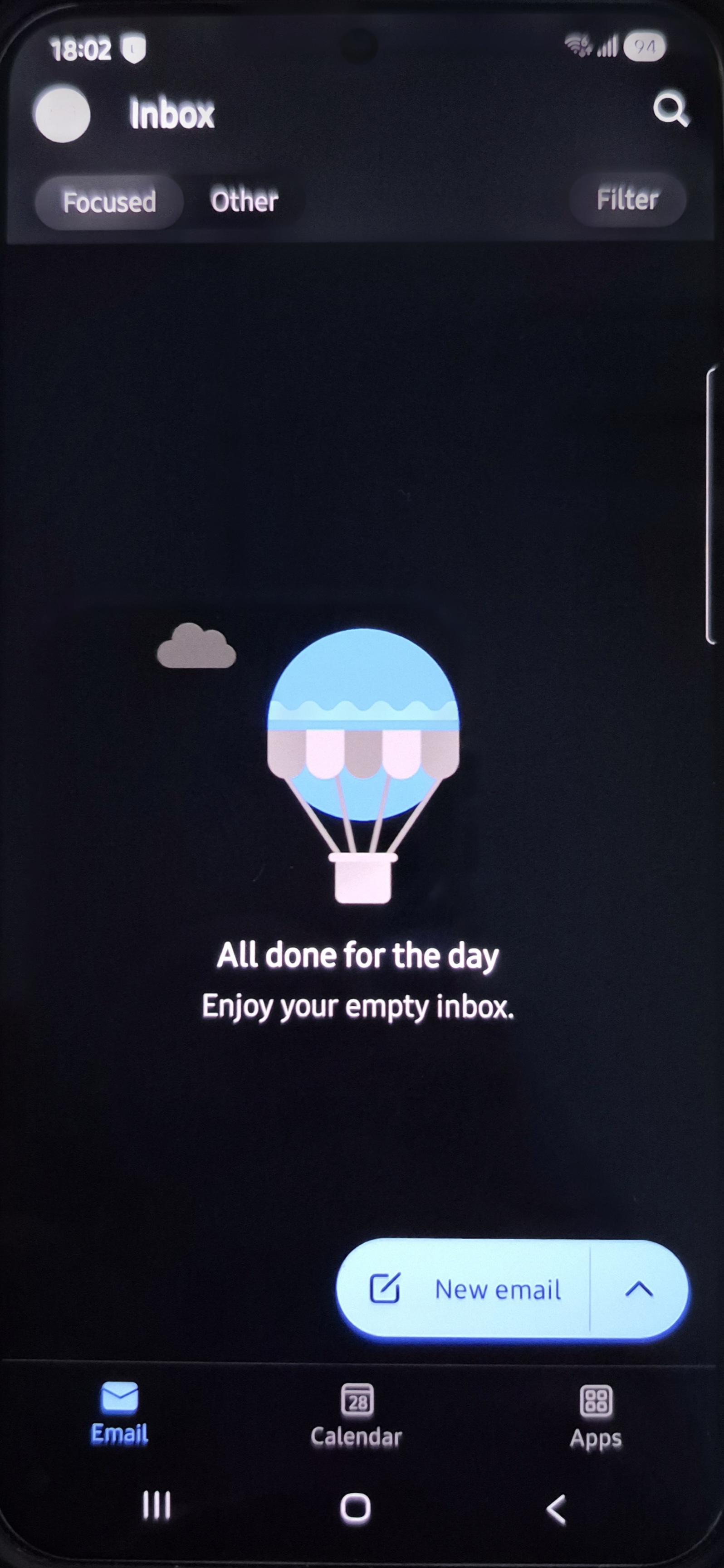
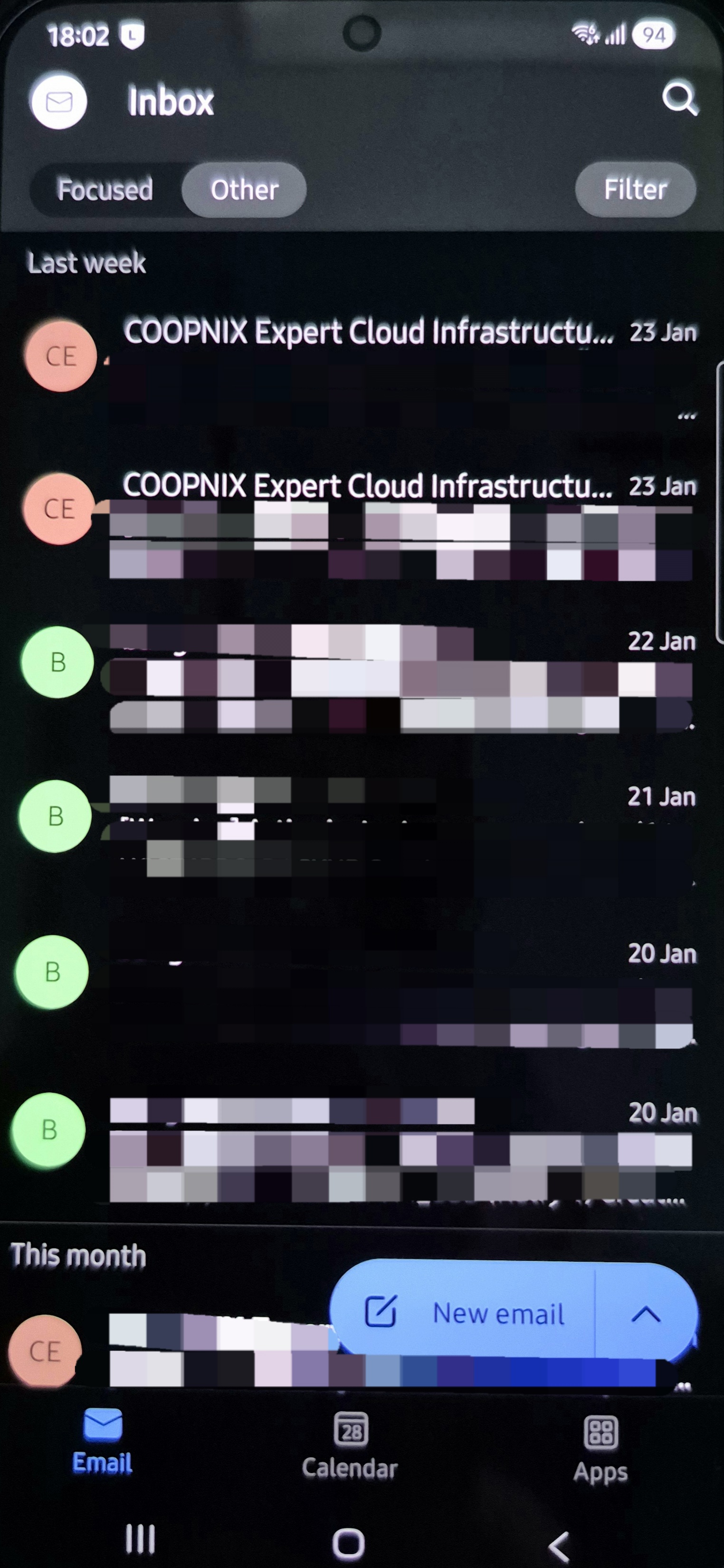
Email จะ download มาอยู่ที่ Inbox